Spec Map Starter: The Mattedor
Make your iRacing paints stand out with a fresh matte finish using this spec map starter.

Editor’s Note: Julian Madore is a designer on the Trading Paints team from Nova Scotia, Canada. He’s responsible for a lot of our in-sim photography, graphics, and video work that we feature on Instagram and elsewhere.
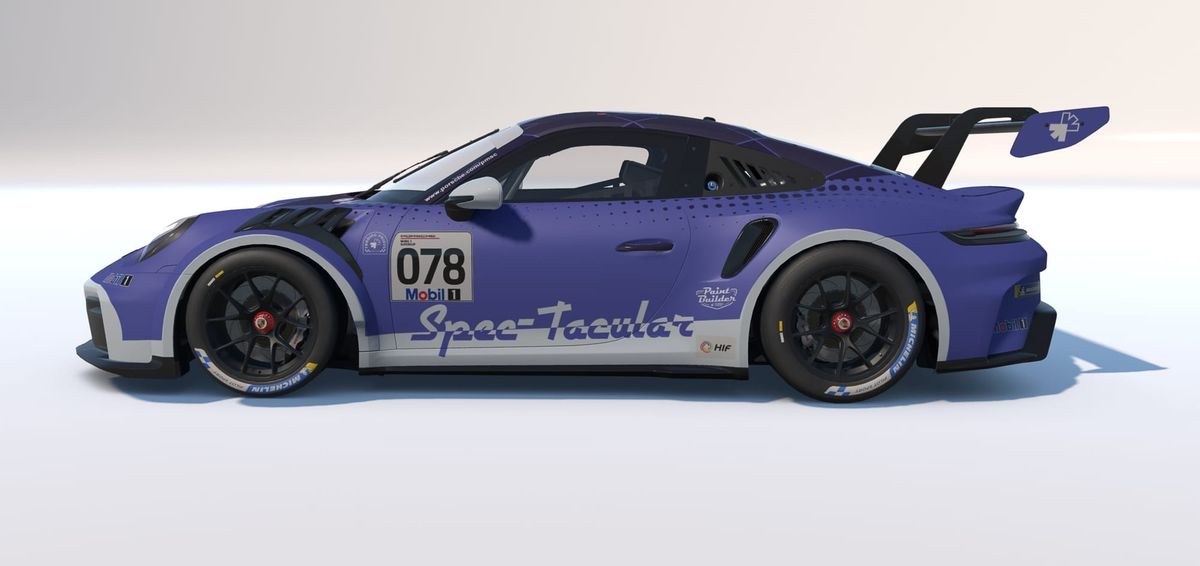
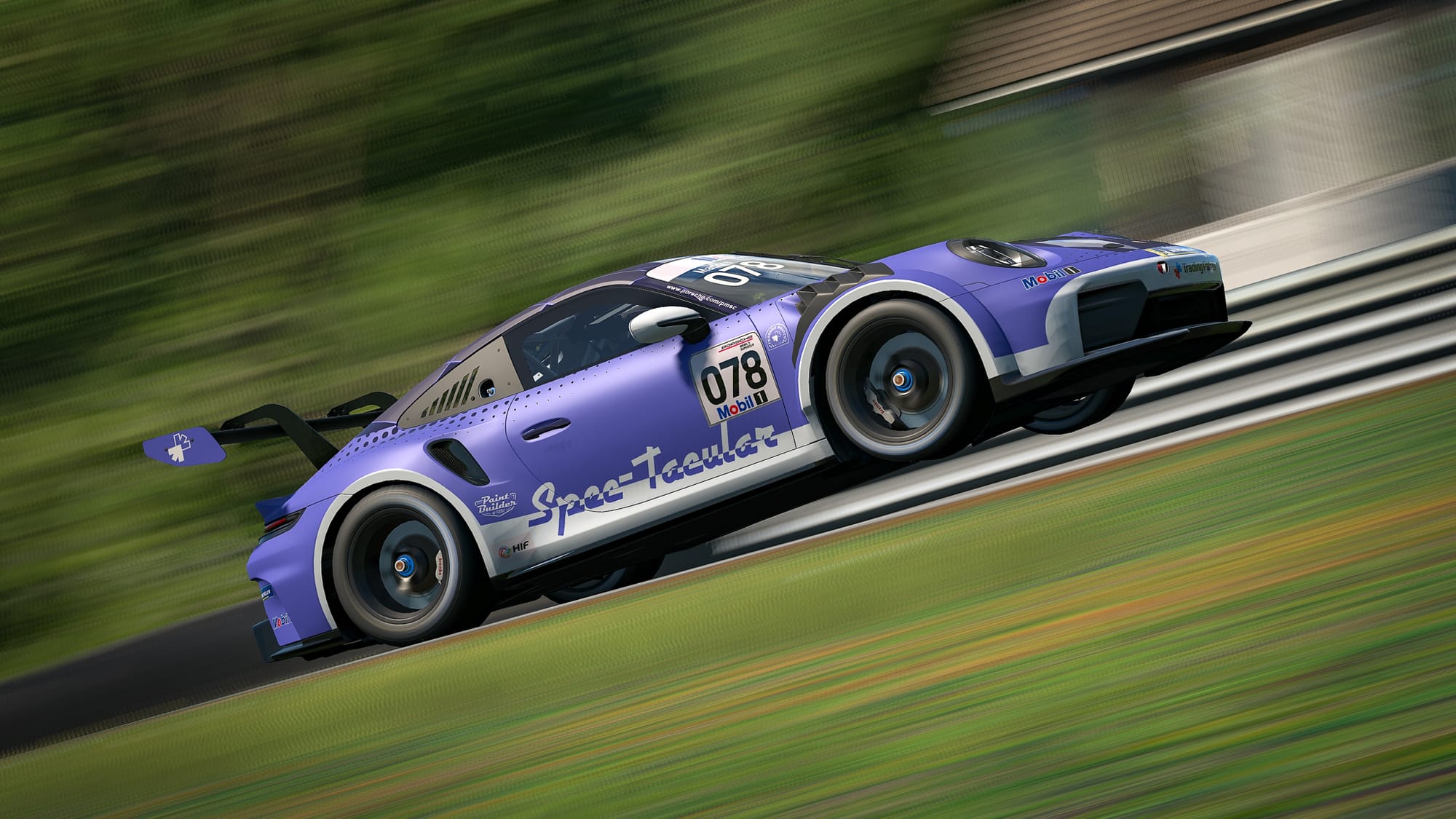
The Spec-Tacular returns with an elegant velvety matte finish this time around. It’s another prime example of how just a few small tweaks to your custom spec map can affect the look of your custom iRacing paints.
Our Community Manager Patrick coined this one The Mattedor — it’s sort of fitting, given this is my first Trading Paints blog post and it rolls with a nickname I've carried over the years in sim racing.
The Mattedor, like our previous spec map starter, is a standard-issue finish. It’s very easy to apply with just a few clicks of the mouse within Paint Builder, but we’ll show you how you could apply it as a Custom finish within the app as well so you can make your own tweaks.
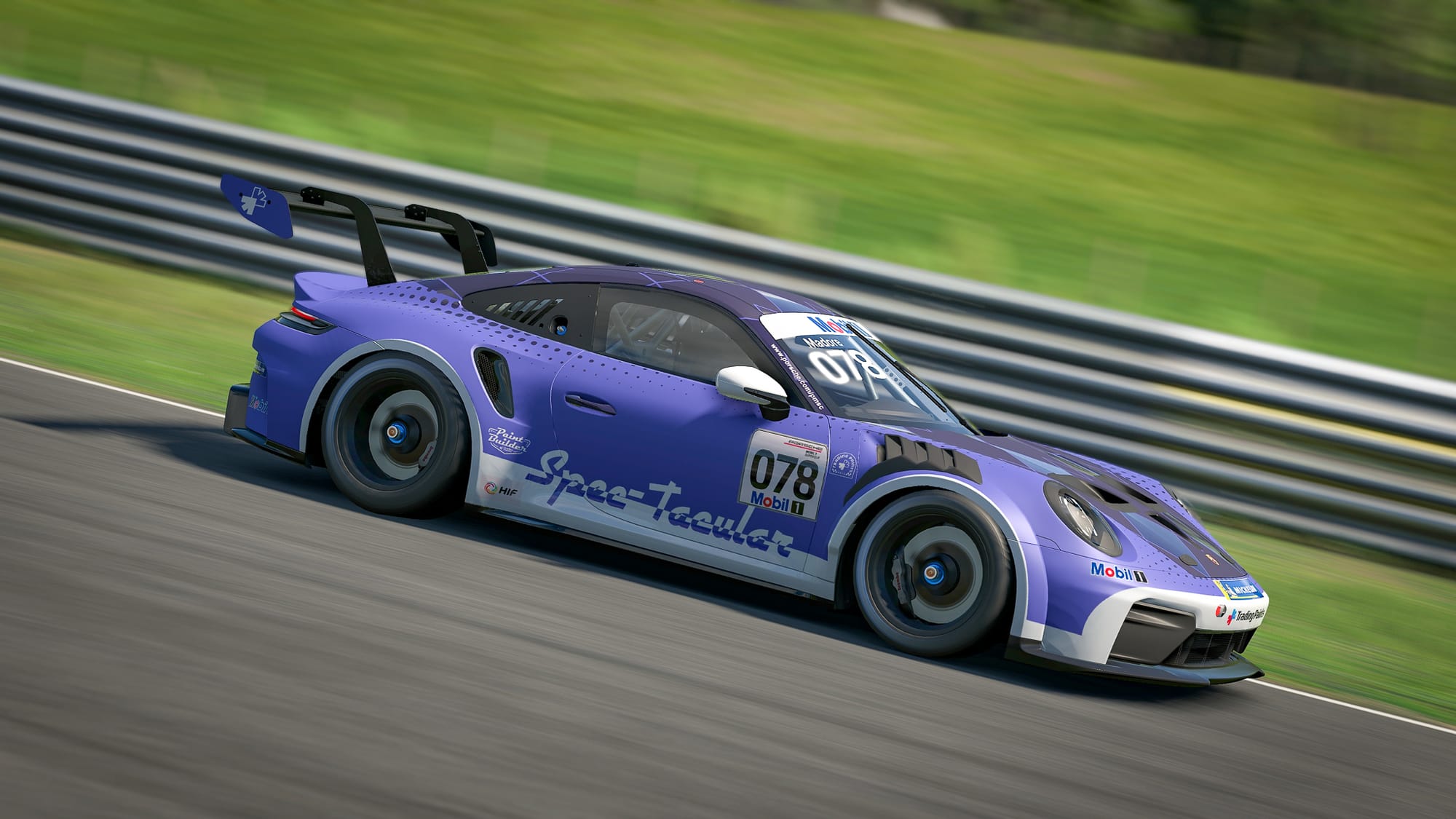
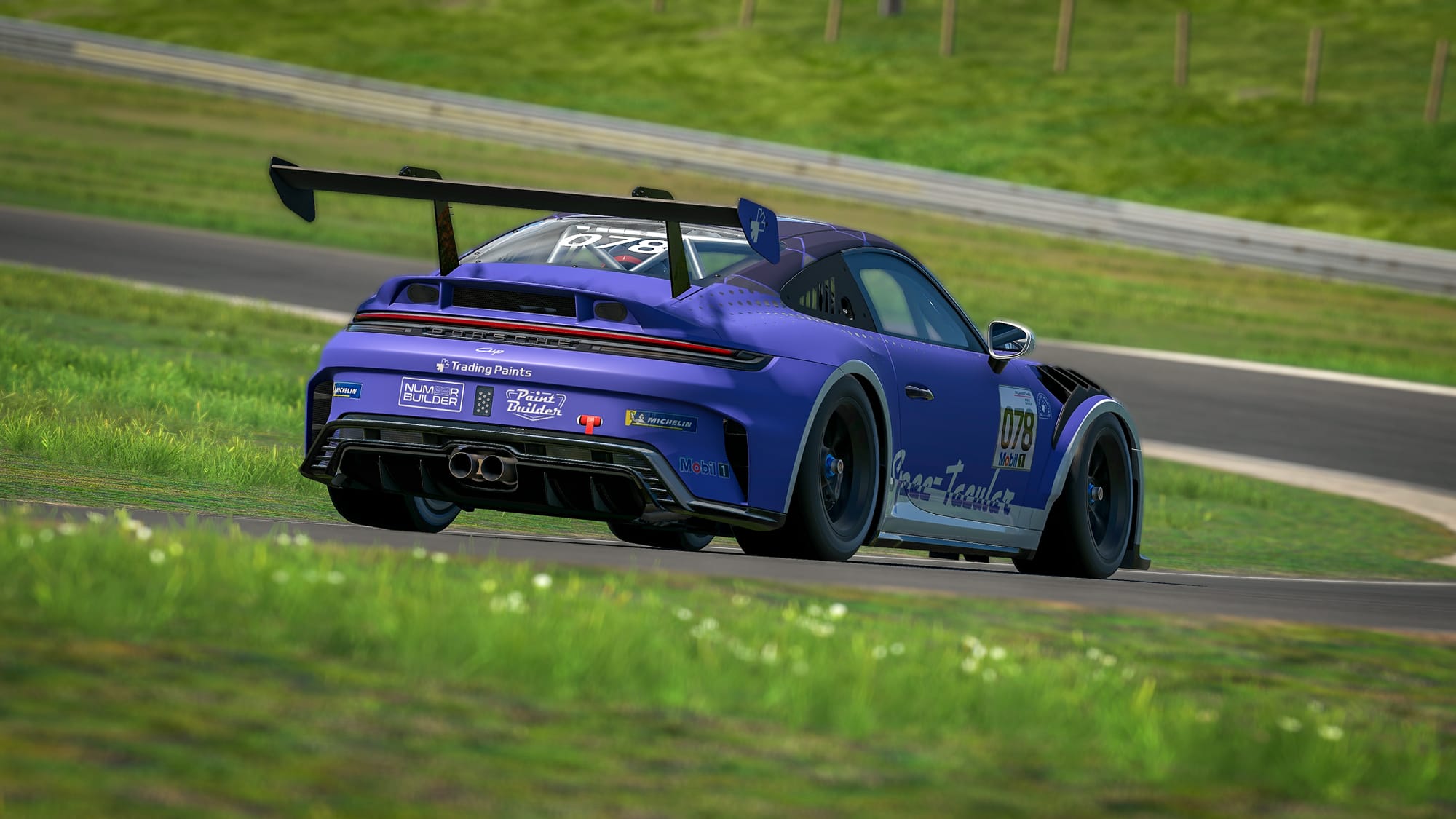
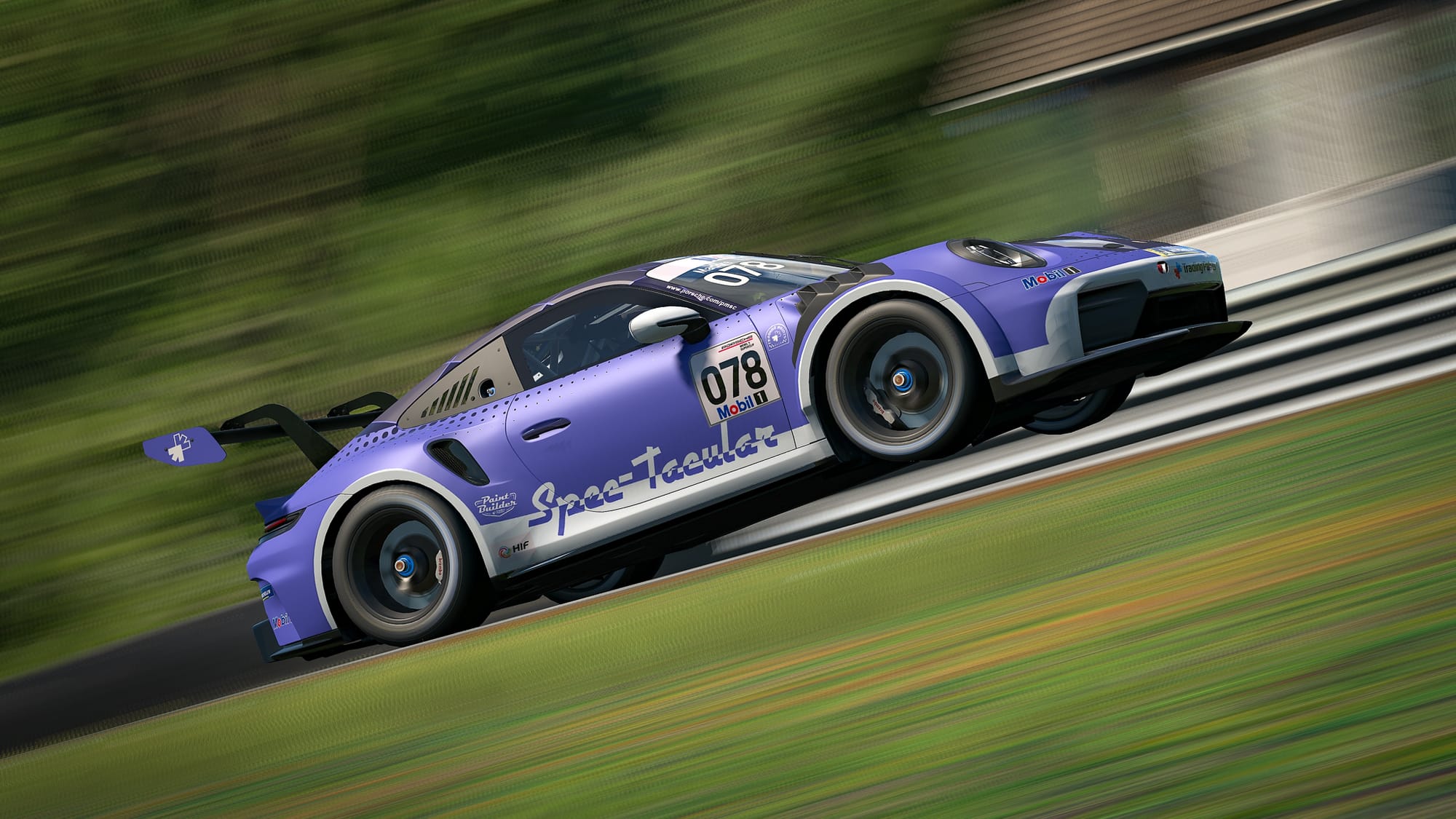
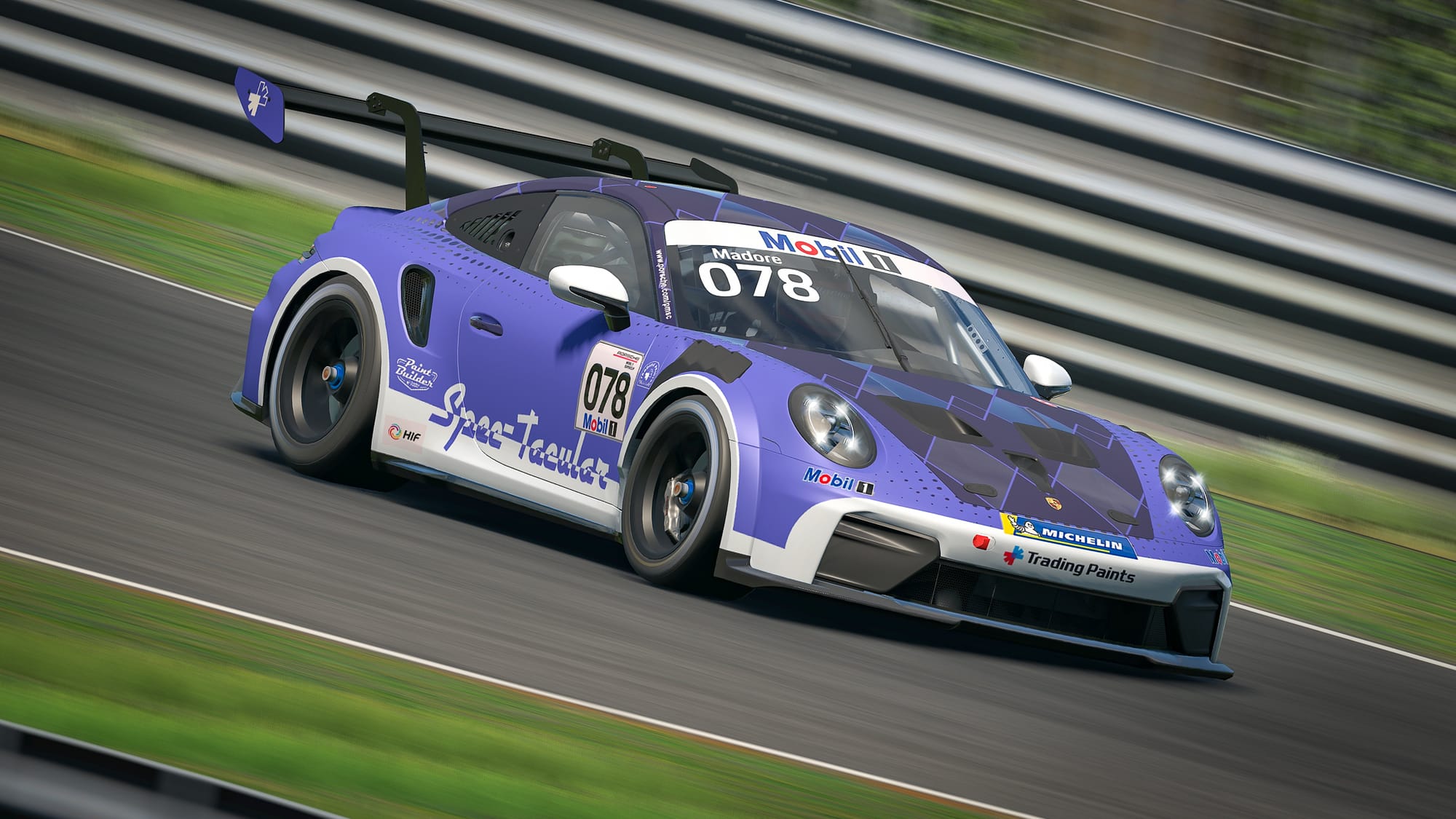
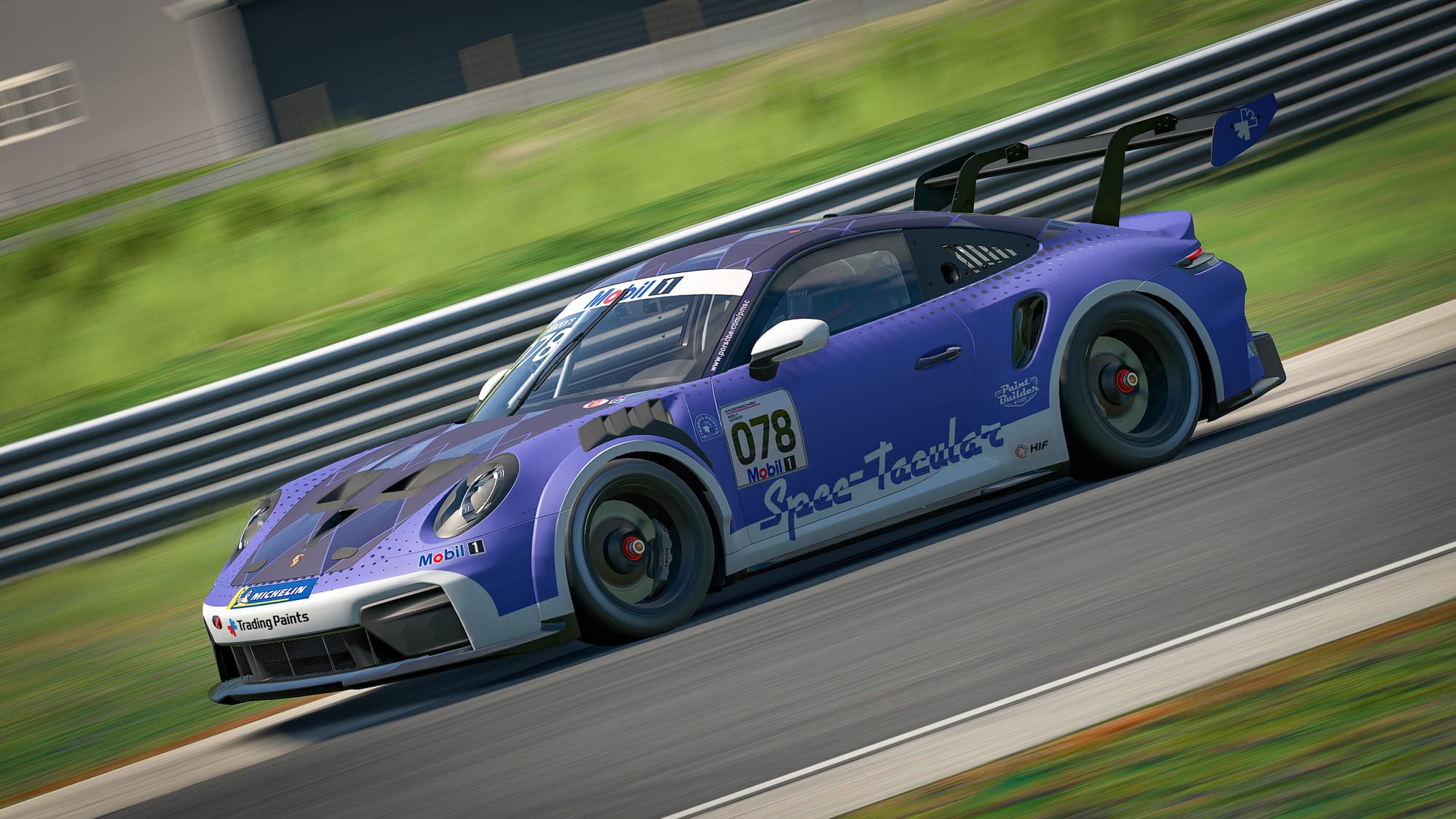
The Spec-Tacular in the full Mattedor finish laying down laps at Lime Rock.
Applying this finish in Paint Builder
The easy way
Alright, so you want to apply this finish and see what it looks like on your own paint, right? Well, we’ll first go over how to achieve this in Paint Builder.
To start, you’ll want to find the gear-shaped Settings icon, near the top left of the Paint Builder workspace. Click that and you’ll be presented with a few different options. Specifically, we’re looking for the Show Spec TGA/Finish option. Make sure that’s checked and you’ll be well on your way to a fancy new paint finish.
Now that we’ve done that, we’ve unlocked finishes on all of your Layers, so select any Layer in your project and head over to the Properties Panel on the right of the workspace. Now, as I stated earlier, this finish is standard-issue with Paint Builder so all you have to do is select the Matte option in the Finish Drop-Down Menu and you’re set. (Well, at least on this specific layer, but now the whole paint finish world is your oyster, so don’t be afraid to experiment with what looks good on your paint.)
The custom (but still easy!) way
Alright, that’s done and dusted, but let’s pretend for a second that we didn't have these fancy presets baked into Paint Builder — how are we going to accomplish this Matte finish … or any finish, for that matter? Well, the Custom option is for just that. So, under the Finish Drop Down Menu select the Custom option and apply the following the values:
Metallic: 28
Roughness: 131
Clearcoat: 0
By using the Custom option, you can fine-tune how the finish is applied.
Paint Builder wrap-up
When you’re finished, you’ll need to use the Sim Preview option to create an instance of your spec map's .mip file, so you can fully apply it to your car when uploading the paint to Trading Paints. It’s easy — don’t worry — we’ve even got a guide to show you how.
Applying this finish in other apps
If your preference is to use other software like Photoshop, Krita, GIMP, etc., you can pretty easily create and save a spec map file from an iRacing Template and get this finish on your paint.
Red Channel (Metallic): #1C1C1C 11% 28 28 28 RGB
Green Channel (Roughness): #838383 51% 131 131 131 RGB
Blue Channel (Clearcoat): #000000 0% 0 0 0 RGB
Color (Combined Values): #1C8300 28 131 0 RGB
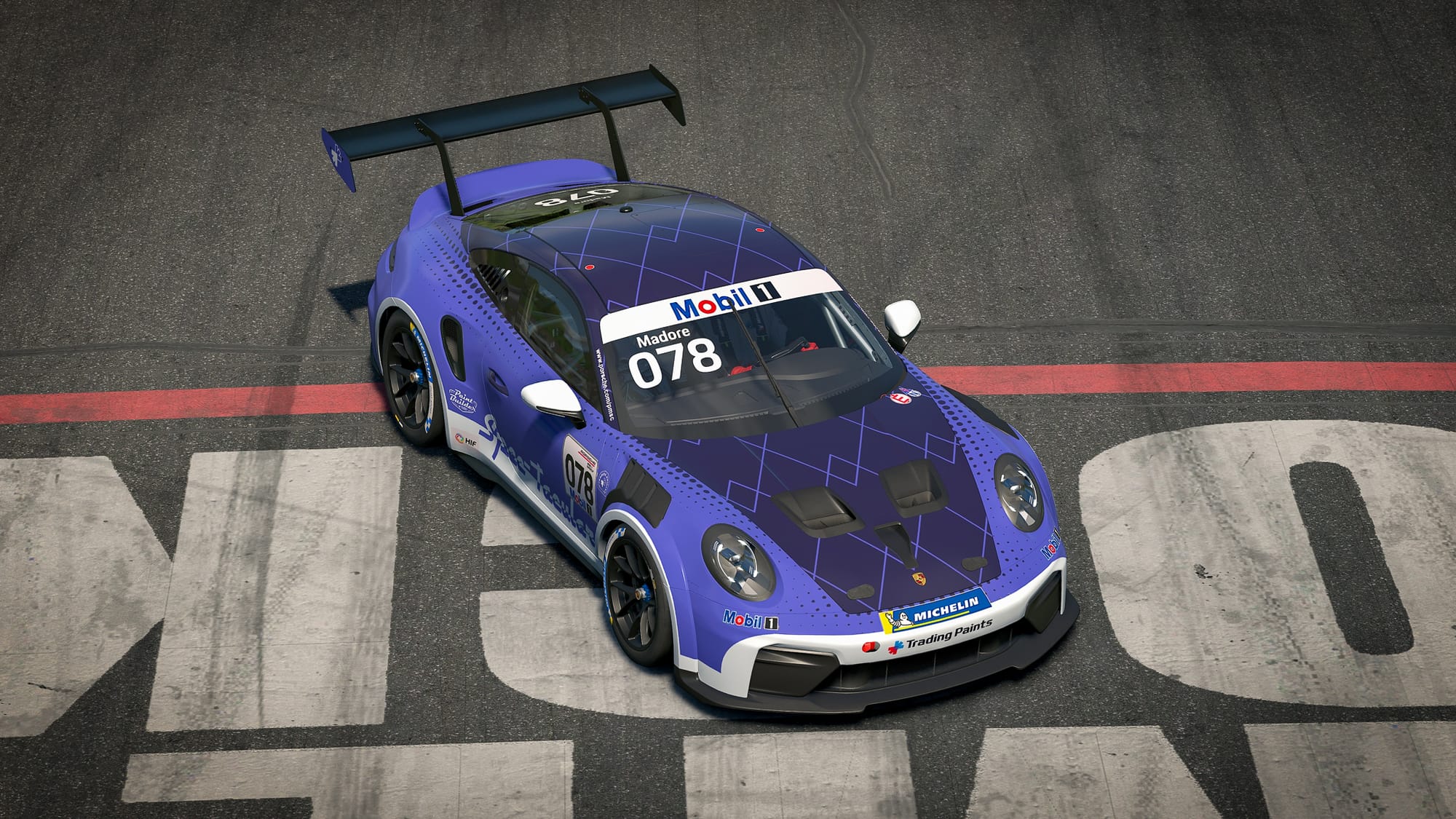
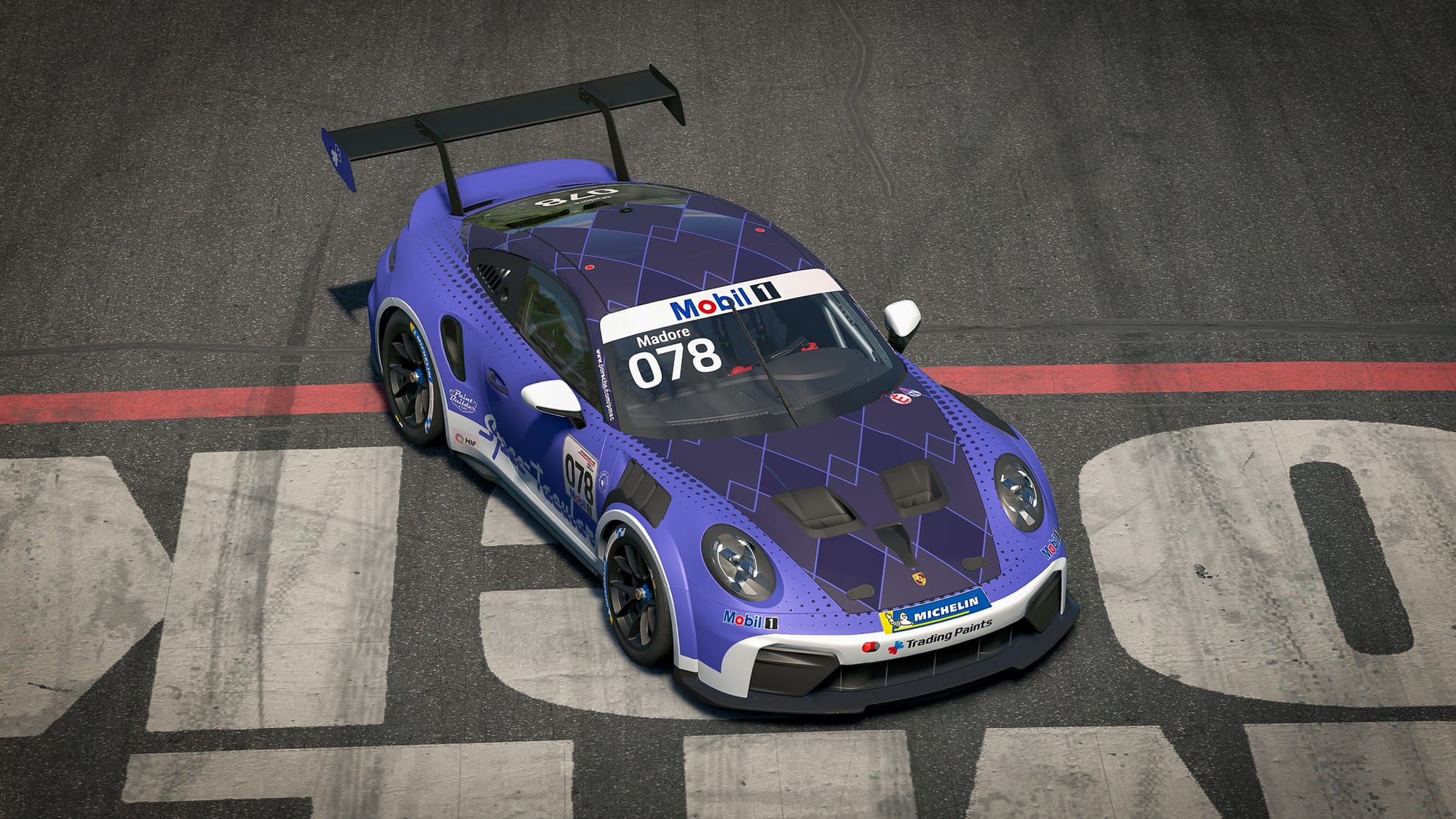
The Spec-Tacular without (left) and with (right) the Mattedor Finish applied.
Alright, you’re all set! Get out there with your fancy new finish and see if it’s the good-luck charm your iRating needs and we’ll see you in the next one!
Follow Trading Paints on Instagram for more iRacing spec map starters like this.